Pentest Findings to ServiceNow,
Mapped to Your Tables
Push approved pentest findings to ServiceNow as Incident, Problem, or Vulnerability Response records, with your own field mapping, evidence images, and no duplicates.
Approve Once. Ticketed in ServiceNow.
A pentest report arrives as a PDF. Remediation at most enterprises runs in ServiceNow. Somewhere between the two, someone retypes every finding into a ticket by hand. The Neuron ServiceNow connector removes that step.
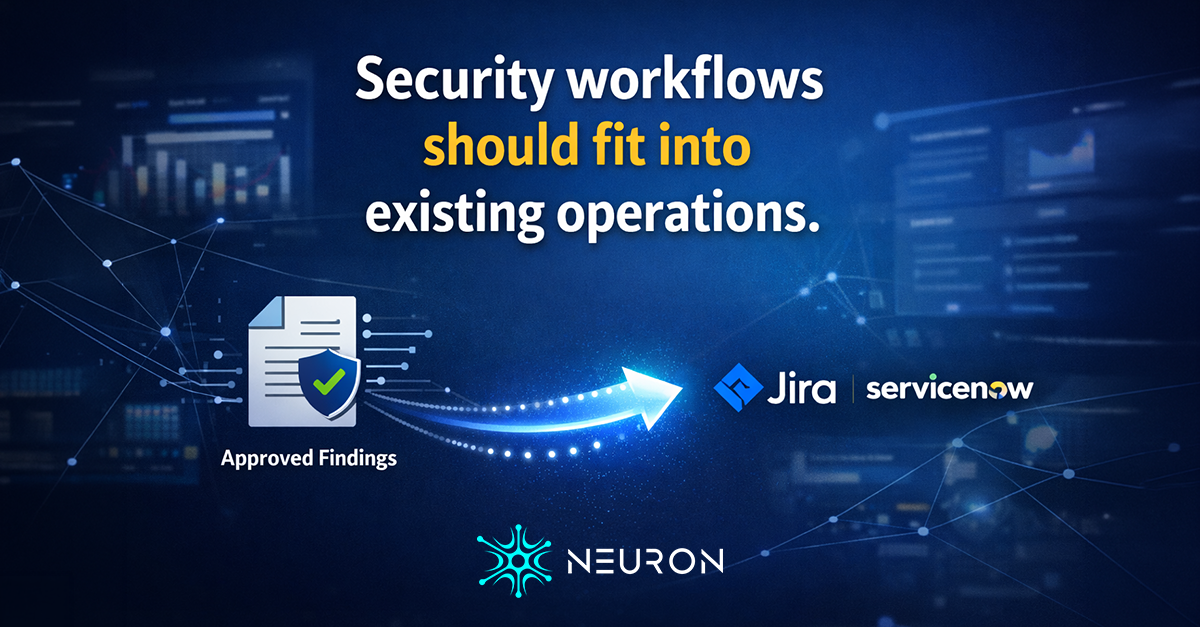
Approve a finding and it becomes a record in the ServiceNow table you choose: Incident, Problem, Change Request, Vulnerability Response, or any custom table. Your field mapping decides what lands where, evidence images upload as attachments, and pushing the finding again updates the same record instead of opening a second one.
The connector runs from your own Neuron server to your ServiceNow instance over HTTPS, signed in as a dedicated integration user with OAuth 2.0 client credentials or Basic Auth. No middleware, and no third-party cloud in between.
Why Findings Stall Before ServiceNow
The test is over, the report is signed off, and the findings sit in a PDF. The people who fix them do not work from PDFs. They work from a ServiceNow queue, and nothing reaches that queue until somebody creates a record for each finding.
So an analyst copies titles into short_description, pastes descriptions that lose their formatting, guesses an impact value, crops the screenshots again so they can be attached, and repeats it forty times. Critical findings wait in an inbox while the tickets are built by hand, and the one that gets skipped is the one nobody remediates.
Then the retest changes a finding and the ticket is already stale. With no link between finding and record, nobody can say which ServiceNow ticket belongs to which finding, or whether it was ever raised at all.
Every Approved Finding, In ServiceNow
Approved findings push to ServiceNow with your own field mapping, and later pushes update the same record.
The Table You Choose
Incident, Problem, Change Request, and Vulnerability Response (sn_vul_vulnerability) are presets. Any other table, including a custom one, can be typed in as the target resource.
Your Field Mapping
Title to short_description, Observations to description, severity to impact, plus any finding, engagement, or custom field you add. Transforms truncate, template, strip markup, and map severities to your own values.
Evidence Images
PNG, JPEG, GIF, and WebP images from the mapped document fields upload through the ServiceNow Attachment API, up to 20 per push. An image already attached is never sent twice.
Reference Fields by Name
With display values on, reference fields such as an assignment group accept a name instead of a sys_id, so a finding can land straight in the right team's queue.
A Correlation ID Per Finding
Map Finding ID to correlation_id and every record carries the finding it came from. Neuron uses it to find the record again and to stop duplicates after a timeout.
Links Back to the Record
Every pushed finding links to its ServiceNow record, and the engagement's Findings list shows a Ticket column with each record and any push still in flight.
How to Push Findings to ServiceNow
- 01
Create a ServiceNow integration user
Give a dedicated user read, create, and write access on each target table, plus read and create on sys_attachment for evidence images. The itil role covers incident, problem, and change_request on most instances. Vulnerability Response tables need that application's own roles.
- 02
Add the ServiceNow connection
In Admin Center, open Workflow Integrations and add a connection with your instance URL. Choose OAuth 2.0 client credentials with the client ID and secret from your application registry entry, or Basic Auth, then run Test Connection to confirm sign-in and table access.
- 03
Build a push profile
Pick the target table and click Load Defaults. Change the correlation_id row to Finding ID so duplicate checks can run, add the fields your remediation team needs, and turn on Attach evidence images.
- 04
Push by hand or by rule
Push one finding, a selection, or every approved finding from the Push Findings menu. Or build routing rules on severity, client, assessment, or custom fields, and findings push themselves the moment QA approves them.
Your Infrastructure. Your Data.
Neuron connects to ServiceNow from your own server over HTTPS, through your outbound proxy when one is configured. Only approved findings are pushed, and only the fields you map.
ServiceNow needs the Workflow Integrations module on your Neuron server.
From Report to Remediation
Once a finding is in ServiceNow, its record stays linked. Edit the finding, push it again, and the same record is updated. Fields marked Create only, such as an assignment group the remediation team may reassign, are left alone on every update.
Push History records every create, update, skip, and failure, with the fields that were sent and the evidence images that uploaded. Timeouts and rate limits retry automatically across 6 attempts, a rejected value stops at once with ServiceNow's own error message, and admins get one email per push run that failed. Export it to CSV when an auditor asks what was sent and when.
When the retest round closes, record the result on the finding and push it again. The mapped status reaches the same ServiceNow record, and the client still reads the full report in the client portal.
ServiceNow Integration FAQ
The questions teams ask most about ServiceNow and Neuron.
How do I push pentest findings to ServiceNow?
Add a ServiceNow connection and a push profile under Workflow Integrations in the Neuron Admin Center, then push approved findings from the engagement's Push Findings menu or let routing rules push them on approval. Each finding becomes one ServiceNow record, and pushing it again updates that record. The connector needs the Workflow Integrations module on your Neuron server.
Can Neuron create ServiceNow Vulnerability Response records from pentest findings?
Yes. Vulnerability Response (sn_vul_vulnerability) is one of the target table presets, alongside Incident, Problem, and Change Request. The integration user needs the Vulnerability Response application's own roles, and any other ServiceNow table can be entered as a custom target.
How does Neuron authenticate to ServiceNow?
With Basic Auth or OAuth 2.0 client credentials. For OAuth, create an application registry entry whose OAuth Application User is the integration account, enable the client credentials grant with glide.oauth.inbound.client.credential.grant_type.enabled, and Neuron requests and renews tokens from /oauth_token.do itself.
Will pushing a finding again create a duplicate ServiceNow ticket?
No. A finding that already has a record from a profile updates that record. Each create also carries a sys_id Neuron generated, and with Finding ID mapped to correlation_id, Neuron checks for an existing ServiceNow record before ever retrying a create that timed out.
Are pentest screenshots attached to the ServiceNow record?
Yes, when Attach evidence images is on in the push profile. PNG, JPEG, GIF, and WebP images from the mapped document fields upload through the ServiceNow Attachment API, up to 25 MB each and 20 per push. An image that cannot be attached never fails the push, and Push History shows why.
Does finding data pass through a third-party cloud on the way to ServiceNow?
No. Neuron is self-hosted and connects straight from your server to your ServiceNow instance over HTTPS on port 443, through your own outbound proxy when one is configured. An on-premises instance on a private network is reached directly.
More Neuron Integrations
Jira Pentest Findings Integration
TicketingMythic C2 Reporting and Activity Logging
C2 FrameworksSliver C2 Reporting and Activity Logging
C2 FrameworksMetasploit Reporting and Session Logging
C2 FrameworksGoPhish Reporting and Campaign Tracking
PhishingEvilginx Reporting and Session Capture Logging
PhishingNetExec (nxc) Reporting and Logging
Active DirectoryCertipy AD CS Reporting and ESC Findings
Active DirectoryReady to Transform Your Security Practice?
See how Neuron helps security teams replace fragmented tools with a single platform for offensive security, bringing structure, visibility, and consistency to every engagement.
Platform